What is a Unix Tablet?
Core Definition
Tablet devices running Unix-like operating systems (e.g., Linux, BSD)
A “Unix tablet” broadly refers to any tablet-class device that runs a Unix-like operating system — most commonly Linux distributions or derivatives, and occasionally BSD variants. This can range from purpose-built, vendor-supported tablets shipping with a mobile-focused Linux (Tablet Linux), to mainstream devices where enthusiasts install a desktop or ARM-optimized Linux build.
The Unix tablet concept focuses on devices where users have a greater degree of control over the OS, kernel versions, packages, and system services than typical consumer tablets. Unix tablets are attractive where customization, security, and long-term maintenance are priorities.
Differences from iPadOS and Android tablets: Openness and Customizability
Compared to iPadOS or Android, Unix tablets typically offer:
- Full shell access (bash/zsh/fish) and native development toolchains (gcc/clang, Python, Go, Rust).
- Package managers and reproducible deployment (apt, dnf, pacman, apk), enabling deterministic updates and enterprise packaging.
- Kernel and driver control — ability to patch or compile kernel modules when drivers are missing or need tuning.
- Better integration into existing Linux-based infrastructure (SSH, systemd, NetworkManager, Ansible, container systems).
Target Audience
Software developers and programmers
Developers value a Unix tablet because it allows local compilation, debugging, and test environments close to server production stacks. It is convenient for edge development and on-site debugging using the same toolchain as backend systems.
System administrators and DevOps engineers
For administrators, Unix tablets provide portable consoles that natively run orchestration tools (kubectl, terraform, ansible) and secure connectivity (OpenSSH, WireGuard), enabling secure on-premise operations without relying on remote desktop workarounds.
Privacy and security enthusiasts
Power users can opt for hardened kernels, verified boot, encrypted storage, and selective telemetry suppression — features often impossible on closed platforms.
Tech enthusiasts and DIY hobbyists
Hobbyists use Unix tablets for custom projects (network scanners, field data collection, kiosk systems), leveraging the flexibility of Linux for hardware tinkering.
Notable Unix Tablet Devices and Projects
Historic Unix PDAs/Tablets
Apple Newton MessagePad (ran Newton OS)
The Newton (1990s) was an early personal digital assistant with a proprietary OS inspired by small Unix-like design principles — a precursor in the idea of personal portable computing that could be developer-extended.
Sony PEG series PDAs (capable of running NetBSD)
Several Sony PDAs in the early 2000s gained community ports of NetBSD and other Unix-like systems. These projects demonstrate the long-standing interest in running Unix-like stacks on handheld hardware.
Modern Tablets Pre-installed with Linux
PineTab series (Pine64)
Pine64’s PineTab and PineTab2 are low-cost ARM-based tablets shipped with Linux-friendly firmware and often support multiple distributions. They emphasize openness, repairability, and community maintenance.
Juno Tablet (System76)
System76 announced the Juno line (concept/prototype devices heading into the market) geared to enthusiasts who want a premium experience with Pop!_OS or Ubuntu-derived software. These products focus on driver support and vendor-backed updates.
DIY tablet projects based on Raspberry Pi
Community builders produce Raspberry Pi tablets by combining IPS touch displays, custom enclosures, and optimized Linux images. These are great for prototyping but require significant DIY integration.
Installing Linux on Mainstream Tablets
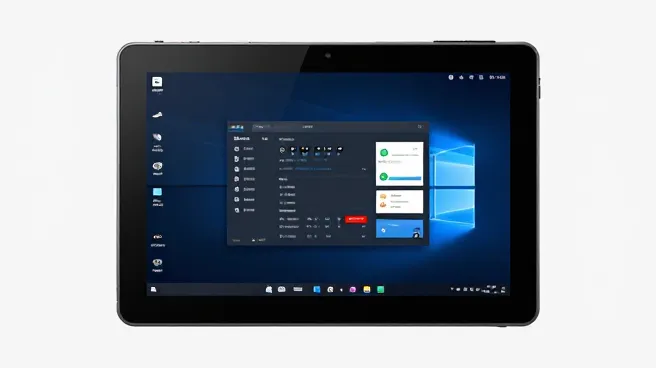
Microsoft Surface Pro series (Ubuntu, Arch Linux)
Surface Pro devices are a popular target for Linux installation because they provide tablet-class hardware with x86 processors and high-resolution displays. Community-driven projects and kernel-mode drivers (surface kernel patches) enable Wi-Fi, touchscreen, pen, and power management on many Surface generations.
Samsung Galaxy Tab series (Linux on DeX project, discontinued but with community support)
Projects like “Linux on DeX” enabled running a full Linux desktop on certain Samsung tablets through DeX mode. While official support ceased, enthusiasts still pack Linux containers and chroots for advanced use.
Apple iPad (via virtual machine or remote connection)
Installing Unix natively on iPad hardware is practically infeasible due to locked bootloaders, but iPadOS devices can act as terminals via SSH clients or remote desktops. Virtual machines (Utm, aarch64 emulation) provide a constrained pathway for running Unix-like environments on iPadOS.
Install Ubuntu on Surface Pro
This section provides an actionable, enterprise-conscious path to install and maintain Ubuntu on Surface Pro hardware. It’s written for technical integrators performing on-premise deployments or pilot programs.
Preparation and corporate considerations
For fleet deployments, include change-control, image signing, and hardware compatibility baseline checks. Validate:
- UEFI Secure Boot policies — determine whether Secure Boot must be retained and configure signed kernels (Canonical provides signed kernels for Ubuntu).
- Driver support for stylus, cameras, fingerprint readers — verify model-specific community kernel branches (example: surface kernel) or vendor drivers.
- Backup existing data and ensure recovery images are created using vendor tools (Windows Recovery, Surface UEFI image).
Installation high-level steps
- Create a recovery image for stock Windows and firmware using Microsoft’s Surface recovery image.
- Download an Ubuntu LTS ISO (or a tested distribution image) and create a bootable USB drive with Rufus (on Windows) or via dd on Linux/macOS.
- Boot into UEFI, disable Fast Boot, and enable USB boot. Consider keeping Secure Boot enabled and use a signed shim if required.
- Boot the USB, choose “Try Ubuntu” to validate touchscreen, Wi-Fi, and pen before committing to install.
- Install and then apply kernel patches or vendor-supplied driver packages for the Surface hardware (e.g., linux-surface project resources).
Common driver issues and fixes
On many Surface models you’ll need to address:
- Wi-Fi/Bluetooth: install firmware packages (linux-firmware) or vendor blobs; check kernel dmesg for missing firmware warnings.
- Touchscreen/pen: often require a patched kernel or user-space daemon for palm rejection.
- Power management: TLP or tuned profiles plus surface power management patches improve battery life.
Linux tablet preinstalled
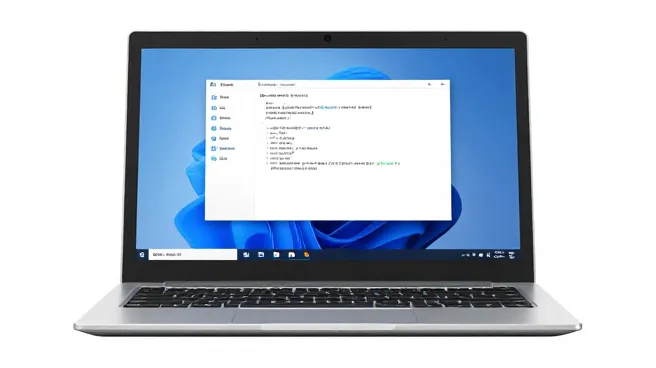
Many modern examples ship with Linux preinstalled (or offer it as a supported option). This eliminates a large portion of integration effort and helps procurement teams reduce risk.
Commercially-supported Linux tablets
Vendors like System76, Purism, and Pine64 have focused on preinstalling Linux or providing first-class support. Preinstalled Linux tablets offer:
- Vendor-provided kernel/build updates aligned with hardware.
- Preconfigured power and display management.
- Better out-of-box security defaults (encrypted root, verified boot options).
Enterprise considerations
When selecting a Linux tablet preinstalled, confirm feature parity for enterprise features: MDM integration, VPN capabilities, certificate management, and remote wipe options.
Linux tablet software development
Software development on a Unix tablet mirrors desktop Linux development but with specific mobile and touch considerations. This section is for architects planning application stacks and developer workflows.
Development workflows and toolchains
A Unix tablet can host native toolchains (GCC/Clang, Rust toolchain, Go) plus containerized environments (podman, Docker via rootless or with system configuration). For cross-compile scenarios, integrate QEMU and multiarch toolchains, or use CI runners to produce builds for a fleet of ARM devices.
UI frameworks and mobile adaptation
When building native apps on Tablet Linux, consider:
- GTK (libadwaita) and Qt (Kirigami) — both have mobile-friendly patterns and are well-supported on Linux.
- Progressive Web Apps (PWAs) — hybrid approach where the app runs in a kiosk-mode browser and is simple to maintain across platforms.
- Convergence frameworks — build once and adapt to touch, keyboard, or mouse inputs.
A North American utilities integrator replaced rugged Android tablets with a custom Linux tablet fleet to integrate directly with on-premise SCADA backends via MQTT and WireGuard. Benefits included a reproducible image, easy deployment of customer-specific Python data-collection scripts, and an enterprise patch schedule aligned with ISO 27001 compliance. The integration reduced mean-time-to-resolution for site incidents by 28% and improved data integrity due to end-to-end control over the stack.
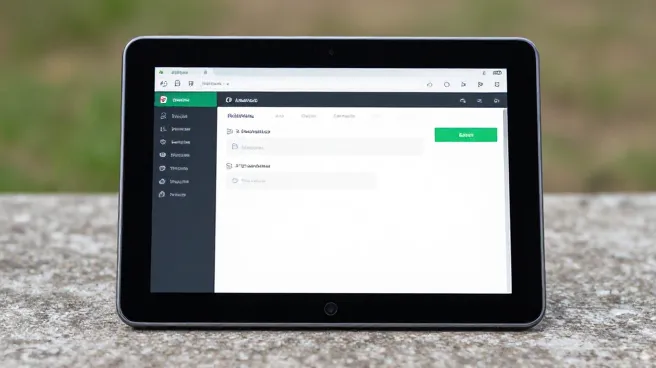
PineTab review
The PineTab series is one of the most accessible introductions to Tablet Linux. Below is an objective evaluation geared toward procurement and technical teams.
Hardware and ergonomics
PineTab devices prioritize repairability and openness over raw performance. Typical characteristics:
- ARM-based SoC with modest CPU performance suitable for light workloads and kiosk applications.
- IPS touch displays with capacitive touch support and optional keyboard covers.
- Expandable storage via microSD and accessible connectors for development/debug.
Software ecosystem
PineTab supports multiple Linux distributions: postmarketOS, Manjaro ARM, Debian derivatives, and experimental builds of Ubuntu Touch. The community actively maintains device trees and kernel patches.
Fit for purpose
Use PineTab for:
- Proof-of-concept and prototype deployments.
- Educational environments and labs where low cost and openness matter.
- Kiosk or thin-client scenarios where internet connectivity and remote management are primary concerns.
| Device / Metric | Typical Price | Out-of-box Linux | Primary Use Case | Enterprise readiness |
|---|---|---|---|---|
| PineTab | $99–$199 | Yes (community images) | Prototype, hobby, education | Low — requires integration |
| System76 Juno | $499–$999 | Yes (Pop!_OS) | Power users, pro dev | High — vendor support |
| Surface Pro (Linux installed) | $599–$2000 | No (requires install) | Enterprise, field ops | Medium — community support |
| iPad (via remote) | $329–$1500 | No | Remote desktop, thin client | Medium — MDM & vendor ecosystems |
Ubuntu Touch installation guide
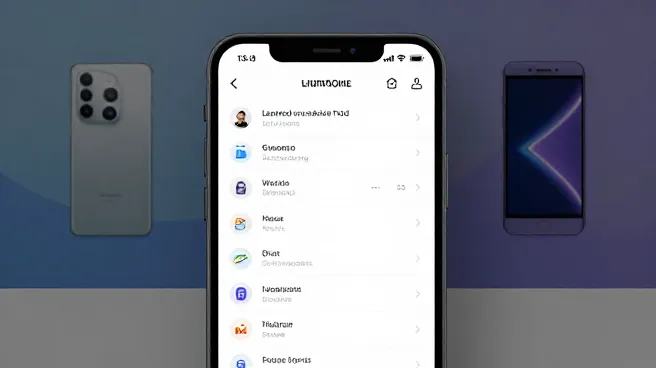
Ubuntu Touch (by the UBports community) is a mobile-optimized Linux distribution offering a convergent UI and an app ecosystem focused on privacy and open standards. This quick guide explains how to provision Ubuntu Touch on supported devices.
Supported devices and resources
Start at https://ubports.com to verify device compatibility. For enterprise pilots, maintain a matrix of supported models and OS feature parity compared to stock vendor ROMs.
Installation steps (summary)
- Backup data on the target device.
- Install the UBports Installer on a host machine (Linux/macOS/Windows).
- Enable developer/USB debugging mode on the device and connect via USB.
- Use UBports Installer to select the target device and a release channel (recommended: stable for production pilots).
- Allow the installer to flash and configure the device; follow on-screen prompts.
- After install, configure network profiles, accounts, and store apps as needed.
Tip: In corporate settings, test OTA updates with a small pilot group and maintain an offline OTA mirror if devices operate in network-isolated environments.
Choosing and Setting Up a Unix Tablet
How to Choose the Right Device?
Hardware compatibility considerations (Wi-Fi, touchscreen, Bluetooth)
Create a compatibility checklist and prioritize support for:
- WiFi chipset driver availability (check kernel messages and distribution firmware packages).
- Touch controller and stylus support (Wacom/ILI/Goodix drivers).
- Bluetooth audio profiles and BLE for enterprise accessories.
Balancing performance and battery life
For field deployments, battery runtime often outweighs peak CPU. Choose devices that have:
- Power-efficient SoCs and governor tuning.
- Good kernel-level power management and suspend/resume stability.
Steps to Install a Linux Distribution
Preparation (backup, downloading the ISO)
Always create a full backup and export device identifiers. For corporate fleets, store signed images and checksums in a central artifact repository.
Creating a bootable USB drive
Use verified tools: Rufus for Windows (with Secure Boot options), balenaEtcher for cross-platform simplicity, or dd for advanced users. Validate checksums and test the USB on a single device before mass imaging.
Installation process and common driver configuration issues
During install, choose partitioning strategies that support encryption and rollback. Post-installation, monitor dmesg, journalctl, and lspci/lsusb output to verify hardware components. Apply kernel modules and firmware packages as required.
Recommended Linux Distributions
Ubuntu Touch (optimized for mobile devices)
Good for privacy-oriented mobile uses and projects needing a convergent UI and active community. UBports provides OTA updates and a curated app ecosystem.
PostmarketOS (aims to extend mobile device lifespan)
PostmarketOS focuses on longevity and applies mainline-kernel-first philosophy. It’s ideal if the goal is to repurpose aging hardware and reduce e-waste.
Standard desktop distributions (e.g., Fedora Workstation, Manjaro ARM)
For power users and enterprise integrators who need familiar tooling, Fedora Workstation and Manjaro ARM provide robust package ecosystems and easy developer onboarding.

Pros and Cons of Unix Tablets
Advantages
Full software control and high customizability
Complete access to the stack allows custom kernel and service configuration, tailored security policies, and reproducible images aligned with enterprise compliance requirements.
Powerful command-line tools and development environment
Native tools such as systemd, OpenSSH, shell environments, and compilers make Unix tablets first-class citizens for technical workflows.
Generally better privacy protection and security
Open-source components enable audits and reduce reliance on opaque telemetry. Organizations can deploy policies and monitoring agents consistent with their security posture.
Challenges and Limitations
Potential for incomplete hardware support (e.g., stylus, camera)
A common limitation is missing vendor drivers, especially for sensors, stylus pressure curves, or biometric hardware. Enterprise pilots should include a driver-compatibility phase.
Lack of a robust mobile application ecosystem
Tablet Linux cannot match iOS/Android app availability. For line-of-business apps, plan for either web-based PWAs or invest in native app ports using Qt/GTK or Flutter targeting Linux.
Setup and maintenance require technical expertise
Device provisioning, kernel patching, and OTA strategies require skills that might not be present in every IT team. Factor in training or vendor support contracts.
A European hospital piloted Tablet Linux on 60 devices to run an in-house medication administration app (web-based PWA). The hospital prioritized data residency and audit logs. After a 6-month pilot — focused on security validation and MDM integration — they proceeded to a phased rollout, reducing licensing costs and improving clinician control over software updates. Challenges included USB barcode scanner configuration and camera driver variance between models, which they solved by selecting a single approved hardware baseline.
Practical resources and standards
Useful authoritative resources and standards for teams implementing Unix tablets:
- Linux kernel official site (kernel.org) — kernel release notes and device tree resources.
- The Linux Foundation — projects, certification, and compliance guidance.
- NIST — cybersecurity frameworks and guidance for enterprise device management.
FAQ
Implementation checklist for integrators
- Define target hardware baseline and maintain a compatibility matrix.
- Create signed, versioned images and an OTA testing process.
- Establish monitoring, backup, and incident response for devices in the field.
- Document driver exceptions and a fallback plan for hardware failures.
- Train IT staff on Linux device management and user support procedures.
Further reading and authoritative links
Author biographies
Note: This article is intended to be a practical reference for Western business users and technical integrators evaluating Unix tablets in the enterprise. For device-specific instructions, consult vendor documentation and community-maintained device pages before deployment.
Latest Content
- How to Optimize Crop Yields with Smart Agriculture
- Industrial Debian Tablet PC: The 2026 Guide to Open-Source Field Computing
- MDT Metrorail: Deployment and Functions in Rail Systems like Miami-Dade Transit
- Best Rugged Tablets for Field Work in 2026: Top Picks & Buyer’s Guide(Updated 2026)
- Comprehensive Guide to Mobile Data Terminals (MDT) for Specific Industries: Fire, Transit, Rail, and Beyond
Tags: Linux tablet, Rugged Linux tablet